

How to Set Up Layered PSDs for Lenticular Printing
This guide explains exactly how to prepare a layered Photoshop (PSD) file for 3D lenticular printing, including resolution, bleed, depth layering, and common mistakes designers should avoid.
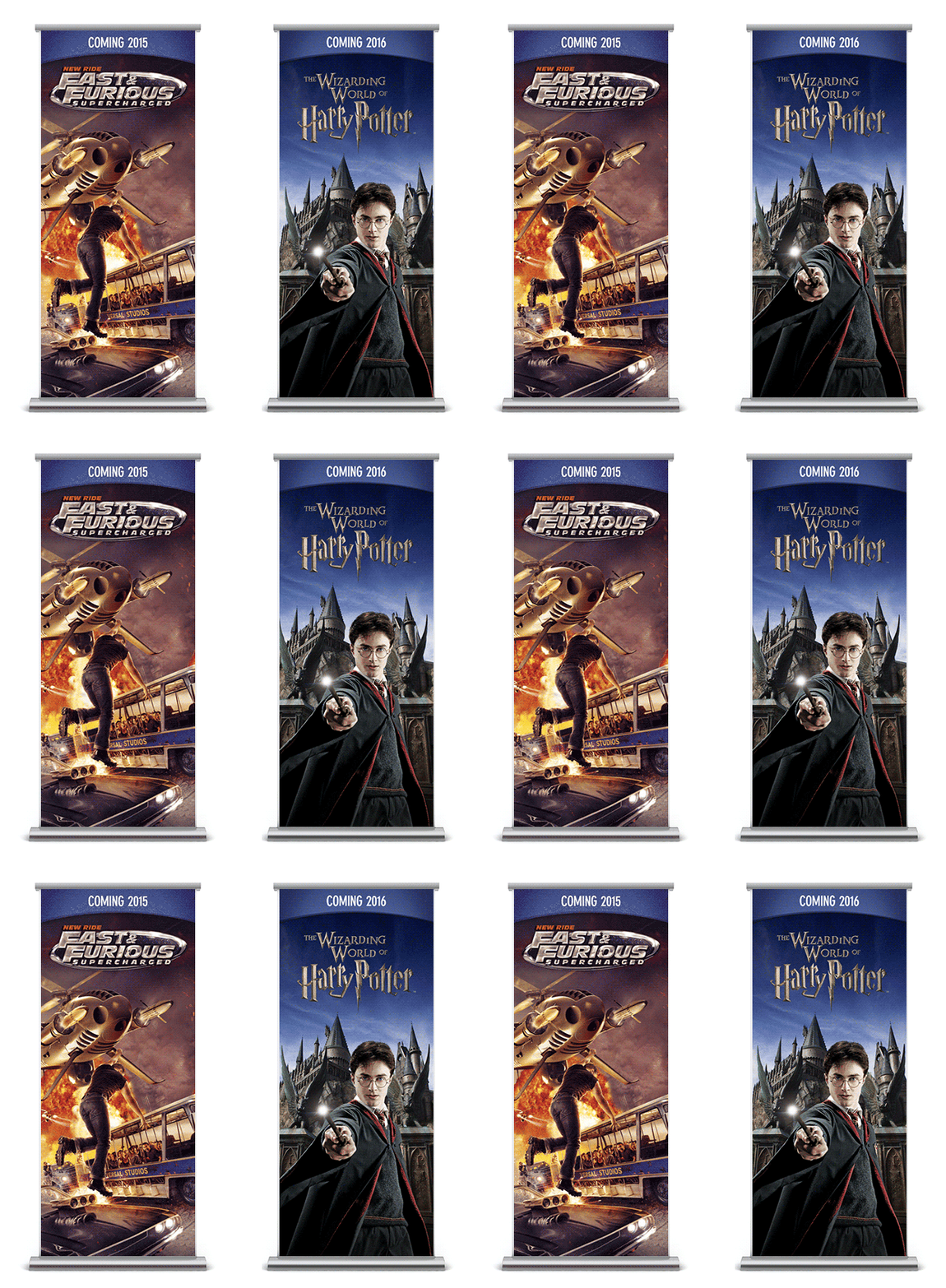
3D lenticular printing is one of the most effective ways to stop a customer in their tracks — and we can help make it easy. 3D lenticular appears almost like “magic” — with floating elements and a sense of depth you feel like you could reach into.
We often get asked: “Do I need to do the interlacing myself?” The answer is no — we handle the complex technical interlacing for you. However, the quality of your final 3D effect depends entirely on how you prepare your file. Our job is to help guide you in doing that.
What’s needed: A Layered Photoshop (PSD) File. Here is our step-by-step guide to setting up your Photoshop files for maximum 3D impact.
1. Start with the Right Canvas (Specs Matter)
Before you place your first pixel, make sure your document settings are correct.
Resolution: 300 DPI for any lenticular print up to 18″ x 28″. For large format above that size, 150 DPI is sufficient.
Color Mode: CMYK.
Bleed: This is important and unique to 3D lenticular. Provide at least 1/8″ (0.125″) of bleed at the top and bottom. Provide at least 3/4″ (0.75″) of bleed on the left and right sides. That extra bleed allows the viewer to see “off the edge” of the image when the card is tilted side to side. (For more on general lenticular bleed requirements, see our Lenticular Design Guide.)
Safe Zone: Keep critical text and logos at least 1/8″ inside the trim line to avoid edge distortion.
2. The “Layered Sandwich” Strategy
The secret to a great 3D lenticular effect is depth information — meaning anything in your image that you can point to and say “this goes in front of that.” The more, the better.
Parallax is the difference in where an object appears when viewed from two different angles. In lenticular printing, we use this parallax shift to trick the brain into seeing 3D depth on a flat surface.
Depth is a relative sensation — our brains need a reference point to understand how far back something is. Elements floating in blank space without touching each other produce a thin, unconvincing 3D effect.
The Tip: Intentionally overlap your layers. Have a foreground element partially “cut off” a middle-ground element. This visual cue forces the brain to recognize the physical distance between the two objects, making the 3D effect feel much more real.
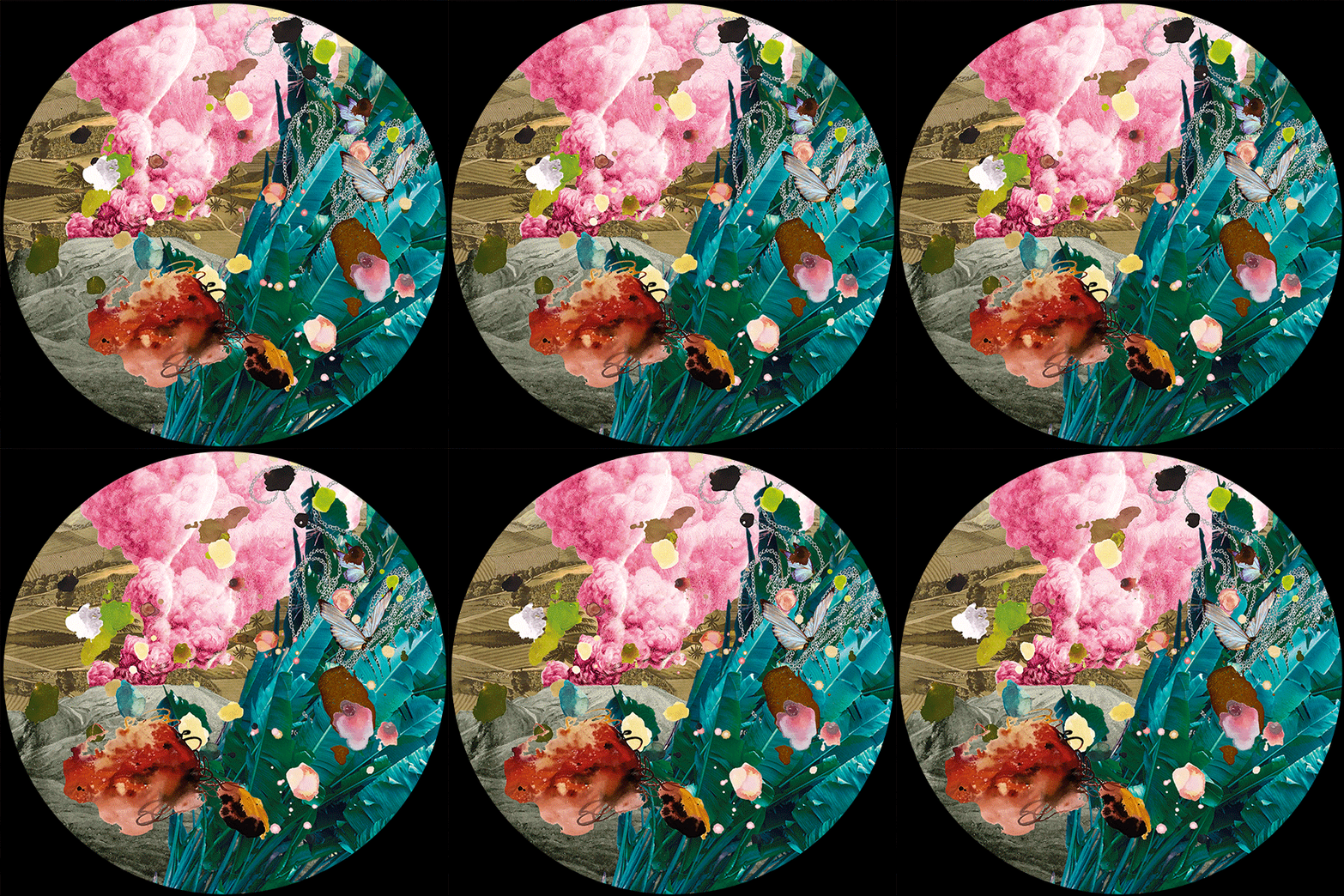
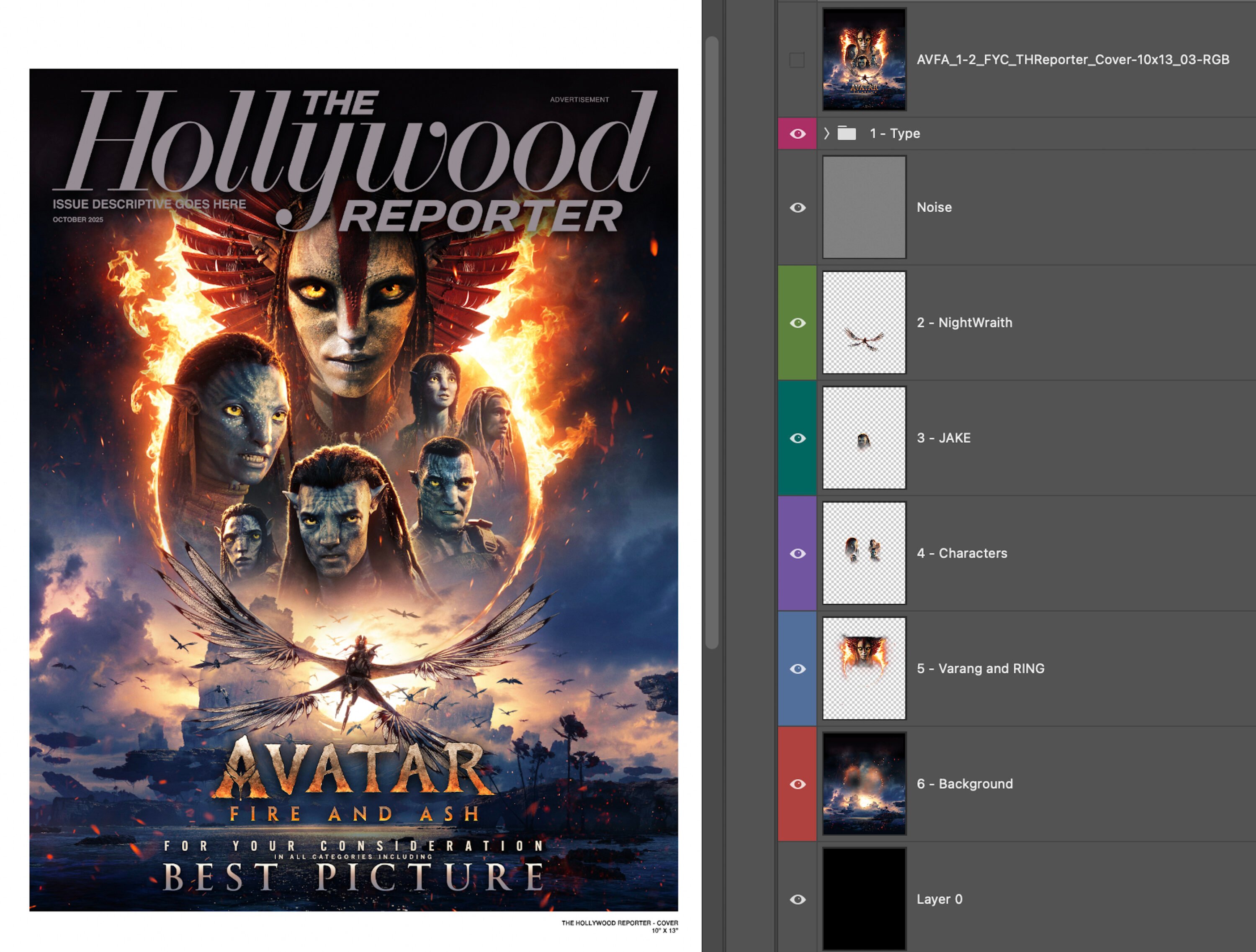
Think of your design as a stage with three main zones:
Background: The “deepest” part of the image. Patterns, skies, or landscapes work best here. Backgrounds with texture and multiple colors produce a richer effect than solid fills.
Middle Ground (The Focal Plane): Where your most important content lives — logo, product, or hero shot. Elements on the focal plane remain sharp and in focus. The further an element is pushed forward or backward from the focal plane, the softer it will appear. This is intentional and creates the depth illusion, but keep your key content here.
Foreground: Elements that “pop” toward the viewer. Use these sparingly for best effect — think floating sparks, leaves, or a hand reaching out. For inspiration, see what kind of source art makes for great 3D lenticular.
Pro Tip: Give every element its own layer. There is no such thing as too many layers in your PSD. We may merge several layers into a single lenticular depth layer, but a well-layered file gives us options to make your piece look its best.
3. The “No Holes” Rule (This Is Crucial)
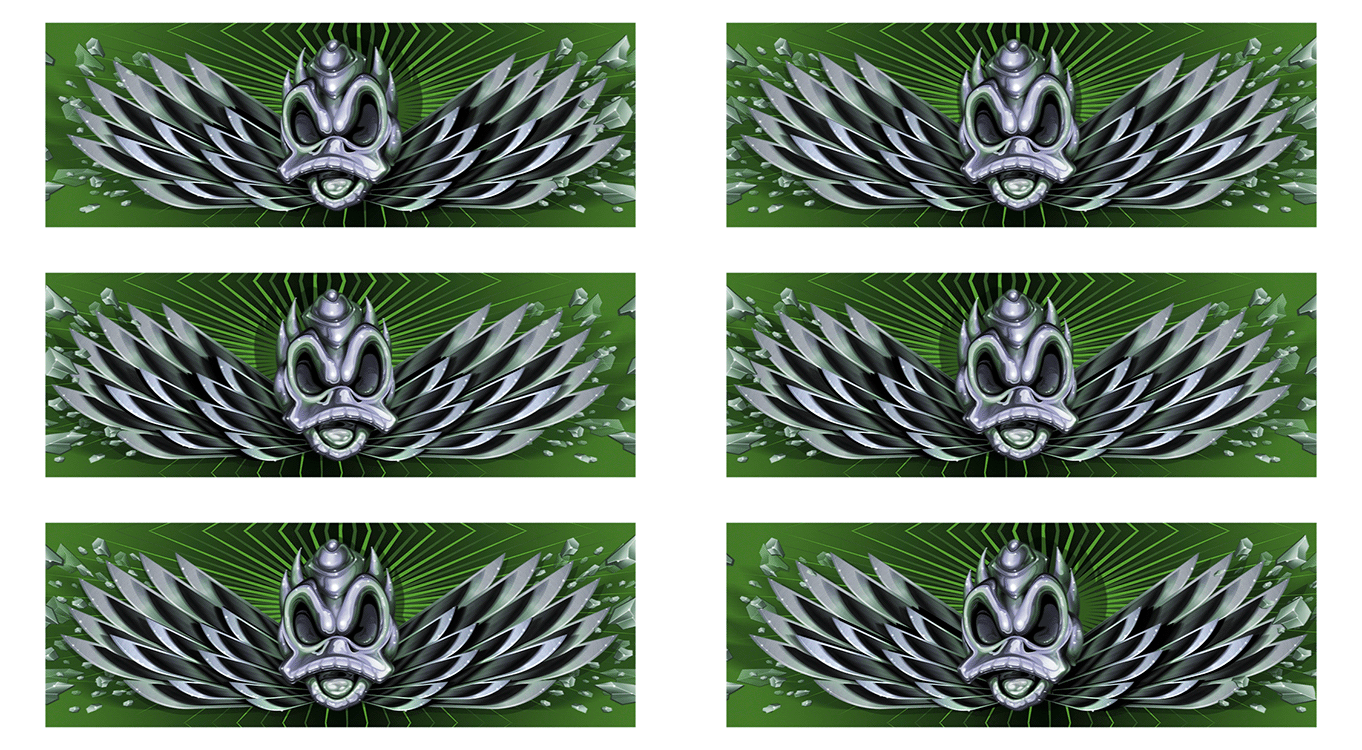
Every layer must be complete — no cutouts where the element in front of it used to be. This is the most common mistake designers make.
When we create 3D depth, we shift your layers left and right. If you have a person standing in front of a brick wall and you move that person layer, there will be a person-shaped hole in the wall where they used to be. Make sure the brick wall layer is complete — no gaps, no missing areas.
Pro Tip: Use Photoshop’s Content-Aware Fill or the Clone Stamp tool to extend background textures so no white holes appear when the layers are shifted.
4. Optimize for Visual Clarity
Some best practices apply to all lenticular printing; others are specific to 3D.
Avoid Small, Thin Text: Very small type (under 10pt sans-serif) can get pixelated under the lens lines. Bigger, bolder text is always better. Keep text on the focal plane unless you’re intentionally allowing some softness. (See also: general design guidelines.)
Use Contrasting Colors: If your image is monochromatic, it’s hard for the brain to distinguish where one layer ends and the next begins. Using different colors on neighboring layers significantly enhances the depth effect.
Watch Out for Vertical Patterns: Because the lenticular lens runs in vertical lines, thin vertical stripes in your art can “vibrate” or create a shimmering moiré pattern. If you use stripes, keep them diagonal or horizontal.
Use Shadows to Anchor Layers: To prevent 3D layers from looking like flat paper cutouts, add subtle drop shadows or glows. This creates a more organic transition between depth planes and helps the eye “measure” the space between them. Learn more about how depth layers interact in our lenticular ghosting guide.

5. Managing Your File Size
Lenticular files can become very large. To keep things manageable:
6. The Handoff: What to Send to World3D
When you’ve finished your masterpiece, do not flatten it. Send us the native layered PSD. This allows our prepress engineers to fine-tune depth and layering for the specific lens gauge being used on your project. Our proprietary interlacing software allows us to optimize depth and even create rounding where none exists in the original file.
Quick Checklist
Ready to See Your Design in 3D?
Preparing a file for 3D lenticular is a collaborative process. If you’re unsure whether your layers are set up correctly, contact the World3D team today. We offer a free file review to make sure your project is a 3D success.